Apple - My Tricks Website

Search This Blog

Powered by Blogger.

Popular Posts

Follow us!


You can also receive Free Email Updates:

Widget by ST


Showing posts with label Apple. Show all posts

Thursday, 6 February 2014


Google Voice – a tremendous service for U.S. people to call and sms their favorite contacts. It’s also giving powerful competition to Skype with the features like forwarding call from your google voice number to real numbers all over the world.

This is pretty awesome service that Google offered but it’s sad that only available in U.S. Hope to see the service in other parts of the world.
However, every good thing has a flip side too. One thing that keep me irritated about using Google Voice is that you have to keep Google Voice webpage open to receive messages. Sometimes, you may close it mistakenly and u become not available to receive any messages.
Opening Google Voice webpage might be inconvenient for many out there like me. So, I started to search Google Voice Desktop notification apps to keep me stay connected with Google Voice account. There are not many softwares out there, but I find some cool softwares after a extensive research that help you to keep notified about any activity with Google Voice account on your desktop.
So, for now, without wasting any time further, have a look on mytrickswebsite compilation of 5 great Google Voice desktop apps to keep you notified about every activity.
1) Google Voice App : To help keep Google Voice open on the desktop, Google voice app is created. As this is app based on Adobe Air, it will work on all popular OS like Windows, Mac and Linux.

2) GVNotifier : GVNotifier is a powerful app that brings Google Voice right to your Windows desktop. Quickly send or receive messages, listen to or read voicemail, connect calls and more. This little app works for Windows XP/Vista/7.

3) VoiceMac : VoiceMac is the first Google Voice client for the Mac. Send multiple SMS Messages, send SMS Messages, receive SMS Messages, place calls, look at your call history, receive voicemail, reverse lookup a phone number, and search your contact list in one easy interface. When you receive a SMS Message or Voicemail, you get notifications view Growl and hear sounds that is customizable.
With SIP support you can place calls from your computer using your favorite SIP service and if you link your Google Voice Number with the SIP service, you can place calls with your Google Voice Number from your computer. With the reverse lookup data, you can see who is calling you, even if their number isn’t in your contacts list.

4) Google Voice (By Google) : It is basically a Google Chrome extension developed by Google team to keep you stay connected with your Google voice account. Adds a button to the toolbar, which displays the number of unread messages in your Google Voice inbox. Main features includes :
  • Audible alert on new messages (can turn off in extension options).
  • Gives you quick access to your most recent messages with transcripts and voicemail playback.
  • Lets you initiate calls and send free text messages by just typing any number or contact name.
  • Makes phone numbers on websites callable via Google Voice by just clicking on them.

5) GVMax : GVMax is a free webservice that monitors your Google Voice account and notifies you when you receive new SMS or Voicemail. GVMax can send you notifications in a number of ways including via Instant Messaging (XMPP/GoogleTalk), emails, Prowl and Howl notifications, Twitter, HttpPost and SMS (more on the way). The following videos show GVMax in action.
Read More >>

Thursday, 30 January 2014


How do you search a popular website, say Twitter or YouTube, on your mobile phone? You would launch the browser, open the corresponding website and then use the search box inside that site. Or you would use the mobile app, if you have installed one.
There’s an alternate way as well. You may consider installing search shortcuts on the home screen of your mobile phone and they will help you perform searches on your favorite website with fewer steps.
Search your favorite websites with fewer steps
Search your favorite websites with a tap
Let’s dive right into an example.
Open the Safari browser on your iPhone (or iPad) and click here to open the search shortcut for Wolfram Alpha. A pop-up dialog will open but since we are installing the shortcut, hit the Cancel button to close that dialog. Now tap the Share icon in Safari and choose “Add to Home Screen” to add that search shortcut to your home screen.
The next time you want to search Wolfram on your phone, tap the Wolfram shortcut available on your home screen, enter the search terms and it will take you directly to the search results on the Wolfram website. That’s just one tap.
You can similarly add search shortcuts on your Android device using the newer version of Chrome browser. Open any of the search shortcuts listed below, “cancel” the pop-up dialog and then choose the “Add to homescreen” option under the main menu to place a shortcut on your homescreen for quick access.

Search Shortcuts for Android and iOS

Here are some ready-to-install search shortcuts for some popular websites that you may add to the homescreen of your Android or iOS device.
  1. Twitter Search
  2. YouTube Search
  3. Google I’m Feeling Lucky
  4. Wolfram Alpha
  5. Google Image Search
  6. Bing Search
  7. Amazon Search
  8. Google+ Search
  9. Wikipedia Search
  10. Facebook Search

Write your own Search Shortcuts

A search shortcut is essentially a little piece of JavaScript, much like a bookmarklet, that accepts input through a pop-up dialog and redirects the user to the search results page.
Read More >>

Tuesday, 24 September 2013


So, after a long wait iOS 7 has arrived. Although the developer version was out to test and I tested it way before the release, but now its available for all.

At first iOS 7 may look totally different to you, the fluorescent area and new icons for your favorite apps can struck you as a newland.
We will be helping you with some basic and advanced features, which are bit confusing at start. Although Tim Cook has given a sneak peak at almost all major features and how to use them at the event. Still we need to polish our senses a bit, about the all new iOS 7.
Some of you may know these tricks and are using iOS 7, but we will try to keep these tricks from beginner level to advance so that you may learn a thing or two. If you know all these tricks before hand then you can know few more of these, share them with us in the comments below.
Also see : iPhone 5s – Review

Search in iOS 7 (Swipe Down)

In iOS 7 to get what you need by typing in on spotlight is shifted to the top of screen, where you need to swipe down and enter text to search.
As far as i know, there was a ‘search on web’ feature, which is no longer available now, but I personally feel that it was useless. I haven’t used it since ages.

Toggles are here (Swipe Up)

TogglesAndroid users are enjoying this feature from a long time, where you just swipe and tap on icons like Bluetooth, WiFI, Airplane Mode etc. This feature has now been integrated beautifully in iOS 7. Just swipe up and new Toggle screen will appear which has all the options to control your Bluetooth, WiFi, Airplane Mode, Do Not Disturb, Orientation Lock and you will also find two sliders containing brightness control and media controls.
Another great addition here is the Flashlight button, so now you don’t need to download an app for flashlight anymore. While playing games this swipe up feature may interrupt, but you can easily switch it off from settings.

Timestamps in SMS

Now you can simple swipe to left, inside your SMS and iMessage chats to get the timestamps. Before there was no such option to view a multithreaded message with timestamps on all the messages, you could only see timestamp at the beginning of chat.
Trust me it does help, when you get into an argument over who sent it, and when. I love this feature.

Level your workspace

LevelI have used the leveling app before and now iOS 7 has integrated it with the famous compass. Just swipe to the left from the compass app and you will see two big bubbles or circles with degrees in between.
The great thing about this app is that, you can reset the screen level to 0˚ at any point. Thought its a bit dull in looks but pretty effective.

Safari Scrolling and Closing Tabs

Now you can view Tabs of Safari in 3D interface with swipe to left feature, which closes the tab instantly.
There is also an “X” button to close the tabs, but I know all the iPhone users will love to swipe and close the tabs.

Block a number on iPhone

You can now block a number in call/sms/facetime within iOS 7 settings. You can find the settings @ Settings > Phone > Blocked; Settings > Messages > Blocked; or Settings > FaceTime > Blocked
Until now there were apps doing this blocking but now iOS 7 gives this important feature in this update. These types of update really give you hope about future updates on iOS.

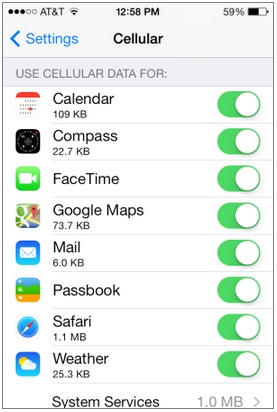
Cell Usage/Blockage with App by App Feature

Blockage App by AppNow you can easily check usage of any app in cell usage, means when not in WiFi you can control which app can access your cell data 2G/3G/4G.
Just go to Settings > Cellular and scroll down, you will get a list of apps using the most cell data and simply can turn off the app to use cell data.

Closing Apps ( Swipe up )

Closing AppsNow closing an app in iOS 7 is not really necessary as apps in background in this update uses very less resources, just still if you would like to close an app in iOS 7 you need to double tap on the home button and there will be an list of fullscreen app available, then you can simple swipe an app upwards and it will be closed immediately.
Read More >>

Sunday, 22 September 2013


review iphone 5sReview : iPhone 5s

As expected iPhone 5s has made quite a buzz since its launch, this eagerly awaited phone has got some amazing add-ons and the main area where the key improvements have been made is its inside, as there is no change in the size and weight.

The first ever smartphone providing full 64-bit chip and revolutionary capacitive fingerprint sensor, has really made its Forward-Thinking concept a reality. As expected the “s” versions don’t get too many hardware changes like in size of screen, shape of device and weight of phone.
With newly launched OS, iPhone 5s gets the new iOS 7 which is another major update. So, how does this affect the already strong competitors and the new “forward-thinking” concept of Apple iPhone 5s?

iPhone 5s Review


Hardware

Although it doesn’t have any major difference with its predecessor iPhone 5, you will still get the same aluminium chassis, curved edges, but i really liked the more metallic colors than before.
If you get into the dimensions and weight info then you can expect exactly same values. 123.8 x 58.6 x 7.6mm (4.87 x 2.31 x 0.3 inches) & 112g (3.95 ounces). 4-inch, Retina display with 326px per inch, 500 nits of brightness rating and 800:1 contrast ratio. I hope this all will change in future upgrade.
The major change in design is the new Touch ID fingerprint sensor or scanner, which gets place of the only home button, but there is another major change with dual-LED flash on the back of phone. Plus the A7 chip with 64-bit support has already given iPhone 5s great CPU and GPU performance. All this is due to another coprocessor called M7, which takes the toll off from main processor in measuring motion data. Another upgrade goes into the iSight rear and front camera.
The most important improvement has been the LTE’s support with A1453 with 13 LTE bands, supporting almost all pentaband DC-HSPA+, quad-band GSM / EDGE and quad band CDMA/EVDO rev. Right now Apple plans to sell only the locked versions with Sprint in A1453 band. With A1553 GSM version will get into AT&T, T-Mobile and Verizon. Other places like Europe will have A1457 and Asia will get the A1530 network in LTE. For iPhone 5c will be in similar LTE networks as mentioned above.
Some more features include Bluetooth 4.0, aGPS & GLONASS for navigation, 802.11a/b/g/n as dual-band and the age old 16GB, 32GB, 64GB in storage as seen in earlier versions. One more color is introduced making the lot of 3 colors – silver, space gray (black highlights on top & bottom), and gold. The gold color model has certainly made immense excitement towards Apple enthusiasts.

Touch ID

touch id in iphone 5s
Smartphones with fingerprint sensor idea is not new, and there is one phone from Motorola named Atrix 4G which has this feature but certainly its of no great use, the sensor was not upto the mark, so can we expect iPhone to give better results?
Probably yes, iPhone 5s has been integrated with a state of the art capacitive fingerprint sensor into the home button only. Keeping the functionality to basic, this sensor has an silver ring which is encircling the sensor. It actually acts as a trigger to initiate the scan. Once its activated the sensor takes high quality photos of your fingers with different angles and the first layer beneath the dead skin is being scanned to perfection, the image that is rendered in is about 500ppi, which is pretty awesome.
To complete this setup, you need to follow some basic steps which are pretty easy to learn. iPhone 5s can remember 5 fingerprints of same person or five fingerprints of different person so that you can give access to family or friends.
The process is bit fussy but its effective and once all is done you will be able to repeat it very easily. The first step you need to do is to keep your fingers on the home button and iPhone will gather required information, after than it will ask you to place your finger in different angles, like rolling the fingers and moving it sideways and up-down motion.
Then you will be displayed with your fingerprints and you can also rename them to memorize which finger did you use. If your fingers are not recognized properly then probably you can use security code to get in. Although people prefer to use no security code when using iPhone, in my case I get frustrated with entering passwords again and again when downloading apps from App store. You can easily make your transactions without entering password with Touch ID you can save time and it will have an immense usage graph in near future.
It’s really a fun activity to use Touch ID and in near future you will not even remember what password are you using. Forgot those slide to unlock feature, just press the Home button and you are in, there is a question what will happen to unlock features when your fingers are wet or at humid conditions? Well, if your fingers are wet you will not be able to get in for sure, but in humid conditions it doesn’t give any problem. Actually it will exciting to see people using their toe instead to fingers. I am sure there is a funny video around the corner with iPhone 5s and opening with different body parts.

Camera

camera
Apple has been making its camera to keep it simple and sweat all the time, with competitors going on and on with multiple options like – UltraPixels, ClearPixels, PureView and so on. But for people using Apple iPhones are pretty much satisfied with its working. The main variation in 5s came in larger pixel size and larger aperture, making the camera more sensitive in light.
iPhone 5s camera is not much different then the iPhone 5 in specs, but taking pictures and viewing the visible difference between shots will give you an idea about how does it make more clarity and sharpness in both daylight and night shots. Definitely the night shots are great then iPhone 5 picture taken with same place and time.
With features like auto image stabilization and sharpen shots by taking 4 pictures at a time, iPhone 5s has made an clear leap towards better imaging. The new ISP inside the Apple’s A7 chip has made camera features more responsive than ever. You can now take upto 10 images per second which is then being organized automatically in photostream with a folder in it. Which will give you images which are automatically adjusted with light, exposure, sharpness and face detection. The panning feature gives you adjusted exposure automatically now.
With the new built in dual-LED flash known as the True Tone, the flash is now white and amber making it give you more ambient colors and temperatures.
With Front camera now has an HD resolution it will give you pleasure doing the Facetime chats. 1.2 megapixel, 720p video capability and the new BSI sensor with large 1.9µm px all together makes the front cam more better than ever before.

Read More >>

Thursday, 19 September 2013


Have you ever wanted to watch movies or TV shows online on your iPhone ? Well, there are very few iPhone apps and websites which are offering movies and TV shows online for free, and I think this is because of lack of flash support in iPhone.

But if you are using a WiFi connection on your iPhone, there are few websites and apps which will allow you to watch free movies, TV shows and lots of other cool stuff related to videos. And the best part of these choices that they are totally offering a legal way to watch them online.
So, in this article, I am compiling a list of 6 best apps and websites for iPhone that allows you to watch movies, TV shows or videos online for free.
1) B-Movies :B-Movies is an free app to browse the Internet Archive’s Moving Images library of free movies, films, and videos. New version allows you to browse the movie archive through Edge/3G but you till need Wi-Fi connection to watch movies.
The list of categories includes Animation, Technology, Movies, Religion, Sports and Vlogs. You can alse see the synopsis and ratings given by the viewers for every video in the list. You can alos bookmark your favorite videos, search the categories and also choose videos from Low, Medium and High Quality basis.
B-Movies
2) Hollywood Pocket : This is another cool website which allows you to watch movies online although the collection is not big but surely ahead in terms of video quality. You have to visit the site from the iPhone Safari browser and choose the list of categories which contains News, Action, Comedy, Sci-Fi/Horror, Drama and Documentaries.
You can pause, fast forward or rewind the movie as these movies are in Quicktime format. It has some good old movies collections in its categories. You will get the time details of Run Time of a video in front of the movie cover.
Hollywood Pocket
3) Justin.tv : This is surely a gift for those who wanted to connect with latest news all around the globe. Justin.tv is the simplest live video service in the world using 3G or Wi-fi and watch every live and participate in the chat. You can also create live video and show anyone in the world. When you favorite video goes live, you will get push notifications on your iPhone.
Justin tv
4) Joost : Another free iPhone application with a huge amount of videos available from categories like celebrity news and gossip, music videos, action sports, comedy and web originals. You have option to browse videos by category, popular video or the Joost pics.
for films, documentaries and TV shows, with a huge variety from black and white Betty Boop cartoons to celebrity gossip, from Bridezilla episodes to extreme sports documentaries.You can browse videos by category, browse all the popular videos, or the Joost picks. The main categories of Joost are Film, Music and shows, which are further divided into movie genres like action , comedy, horror etc. But the sad part is film category is limited to clips, trailers and documentaries whereas video available under shows are countless.
Joost
5) Spreety TV iPhone : There is a custom iPhone version of Spreety TV main site which allows you to access a limited categories to watch full episodes of TV shows online through 3G or Wi-Fi on your iPhone. To access the iPhone version of Spreety, you have to open your Safari browser and type iphone.spreety.com. You can see NBC, CBS, CW, clips and limited full episodes through Spreety TV on your iPhone. For the CBS iPhone shows, a Wi-Fi connection is recommended.
There are few glitches as loading of a clips sometimes take time but work fine when you try it again after sometime later. But the full episodes streaming of some shows in high quality format makes Spreety TV mentioning here.

6) Daily Motion : Daily Motion is the free app available in iTunes Apps store. Its basically a video sharing website that allows you to watch millions of videos from all around the world. It has a nifty feature in which you can share the videos which you like the most with your friends via email, Facebook and Twitter.
Daily Motion is a great app to watch short films, music videos, trailers, animation etc. You can also subscribe to 15 channels like News & Politics, Fun, Music, Film and rate videos or add video by signing up a free Daily Motion account.
Daily Motion
If you know of any more apps to watch or stream live TV to an iPhone, post it in the comments! Enjoy!
Read More >>

Wednesday, 11 September 2013


Apple is expected to unveil the iPhone 5S and a cheaper iPhone 5C model at a press event on September 10, 2013. This new smartphone may look like just another iPhone but it’s more than that.

The new iPhone appears to have a combination “Home button/Touch ID sensor”. Leaked images of new iPhone indicate the location of the “Lightning connector”, “Silver ring around home button”, “Volume buttons”, and “Sleep/Wake button.” image
The new smartphone is also expected to have an improved display for “increased brightness and/or reduced power consumption. It’s been reported that smartphone would have a Retina + Sharp IGZO display.
iphone 5s gold
According to the leaked specs, the smartphone will include a faster processor iOS 7, an NFC reader, a Fingerprint Reader, a 4-inch 1136 × 640 display and a new 12 megapixel backside camera with dual LED flash. The new handset will also include 2GB of RAM, a quad-core SGX 554MP4 GPU, an A6 CPU and improved LTE. It also has a bigger battery than its predecessor.
It’s well known that one of the key battlegrounds of smartphone warfare is the specifications of the on-board camera. And as per reports, Apple will launch the 5S with a 13MP camera to give tough competition to other smartphone’s like Sony Xperia Z and Galaxy S4.
Leaked images have been surfacing all over the internet and show that iPhone would be offered in several color choices. There are many speculations about the smartphone hardware as iPhone 5C would be introduced as a less expensive alternative. As per reports, the shell or casing of this smartphone will be plastic, to save money.
Other leaked images have focused on the new (and still rumoured) champagne gold iPhone 5s option. Some of the latest images show the champagne gold option with the rumoured dual-flash.
The new iPhone is expected to land in stores around 20th September.
Read More >>

Saturday, 17 August 2013


Google Adsense app has been launched by Google Inc. in the iOS app store, on Aug 5th 2013. The app falls under the Productivity category of the store.

This app is compatible with iPhone 3GS, iPhone 4, iPhone 4S, iPhone 5, iPod touch (3rd generation), iPod touch (4th generation), iPod touch (5th generation) and iPad. Requires iOS 6.0 or later. This app is optimized for iPhone 5.
Finally we have this official app, from adsense team, a real treat for publishers and bloggers. I love the idea to look into the app every few hours since i have downloaded it. We had to wait for this, but it was definitely worth the wait.
The app basically repots some basic features like key earnings, top custom and URL channels, ad units, site reports and payment alerts.
For me its a boon, as i rely on Adsense revenue, keeping my account handy will certainly make my day easier and more productive, as i can keep track very frequently now.

For Android users

Google AdSense appIf you have a android device, then you already have the app in the Google play store as it was launched just last week.
Both the apps look pretty similar and keeping the app introductions one week away from each other, Google has really made mobile phone more productive and time saving. Android and iOS user will certainly get benefit from this Adsense App.
Android users may not have compatibility with all the devices, like Nexus 7 and HTC devices can’t download this app right now, but surely Google will bring their updated version everyone can have this awesome app.
Tell us, if you are a publisher how important this app will be for increasing your productivity?
Download app from : iOS app store | Google Play Store
Read More >>

Friday, 9 August 2013


It’s easy to capture screenshots on mobile devices but let’s do a quick recap. If you have an iPhone, press the Home & Sleep buttons and the screenshot image will be saved instantly. On an Android device, press the Volume Down & Power button simultaneously to capture whatever is currently on your screen. And in the case of Windows Phone 8, press and hold the Start and Power buttons at the same time to take a screenshot.

That’s a raw screenshot saved in your camera roll but you also need to add the hardware frame around your screenshots so that the captured images appear more realistic and provides better context to the viewer.

Why is that important? A 768 pixels wide screenshot of a mobile app in portrait mode could have been captured on an Android device or an old iPad – now wrap that same image inside the Google Nexus frame and everyone is saved from playing a guessing game.A layered photo editing tool like Adobe Photoshop makes it really easy for you to add hardware device frames to any screenshot image. Go to Dribbble and search for “freebies PSD <mobile name>” and you’ll find beautiful mockups for that mobile device.

Download and import the PSD file into Photoshop and then use the File -> Place command to place the screenshot image as a new layer over the mockup. Use the Save for Web option to export the screen capture in JPEG format.
[*] Dribbble users usually add the tag “freebies” or “free” to indicate that others can reuse their design(s) for personal and commercial use. Other than Dribbble, Deviant Art and Behance are also good places to discover high-quality mobile mockups.If you aren’t well-versed in Photoshop, you can make use of a web app like PlaceIt that will automatically add device frames to your mobile screenshots.

The tool offers a collection of professional-quality photographs of mobile phones and tablets placed in realistic settings. You need to drag your screenshot image onto a photograph and it will automatically get placed in the screen area of the mobile device perfectly aligned with the hardware frame.

PlaceIt can handle screenshots of your iPhone, iPad, Nokia Lumia, Macbook, Microsoft Surface, iMac, Amazon Kindle, Samsung Galaxy and Google Nexus phones.
Read More >>

Tuesday, 30 July 2013


There are quite a few good apps in the iTunes Apps store that aren’t available to international users. For instance, if you are located outside the US, you cannot install the Apple iBooks app on your iPhone nor can you download Google Earth on your iPad as it only listed in the US iTunes store.
These are free apps on iTunes but you can’t add them to your iPhones or iPods if your iTunes account is linked to a country other than the United States. You may see these apps in your iTunes store but when hit the install button, it will pop-up a warning message saying “Your account is only valid for purchases in the [your country name here] iTunes store.”
Error - iTunes Store in your Country

Download Apps from Another Country’s iTunes Store

There’s however a workaround that will help you install almost any app from the iTunes Apps store even if that app is not available in the iTunes store of your country. The trick works something like this (video screencast available after the jump).
Step 1: Launch the iTunes program and, if you are logged in, sign-out of your Apple iTunes account (Store – > Sign-out).
Step 2: Scroll down and click “Change Country” – select the United States flag.

Change iTunes Store Country
Step 3: Now search for the name of the app that you are looking to install on your iPad, iPhone or iPod Touch. For this example, let’s try installing Adobe Ideas or iBook (both apps are available for iPhone and iPad but limited to US customers).
Step 4: iTunes will now require you to sign-in with your AOL, MobileMe or Apple ID. Instead of logging-in with your your existing Apple ID, click the “Create New Account” button and accept the “Terms and Conditions.”
Step 5: Use an email address that’s different from the one that’s linked to main Apple account. Under Payment Methods, choose “none” for the Credit Card section, give some dummy address and you’ll then receive a verification email.
Step 6: Click the link in that verification email and you’re done. To recap, you have now created a US based iTunes account and this will let you you can download any free app from the iTunes store even if the app is not available in your country.
Read More >>
Copyright © 2012 - 2013. MyTricksWebsite - All Rights Reserved
Homepage | About | Contact | Privacy Policy
(Articles cannot be reproduced without permission from the author.)
Author : Navdeep Singh | Powered by: Blogger
DMCA.com